Audit Logs
The Audit Logs view provides a detailed record of actions performed by identities across Fleet Control. Each entry captures essential information that helps administrators monitor activity, troubleshoot issues, and maintain compliance.
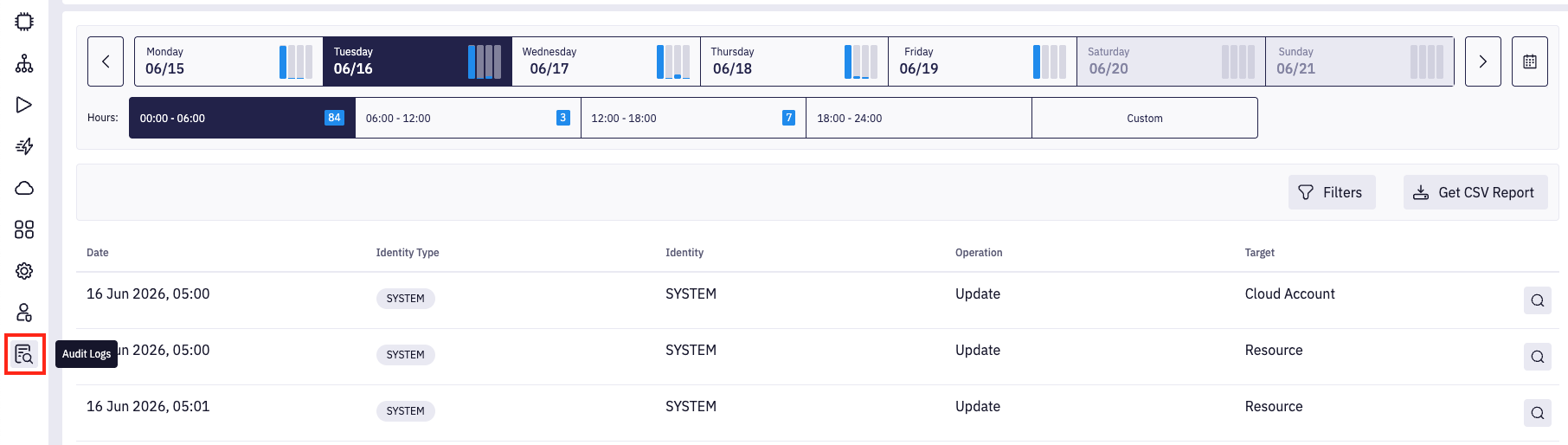
1. List of audit logs
You can view audit logs on a daily basis. For convenience, the time selection within a day is divided into four predefined ranges:
- 00:00–06:00
- 06:00–12:00
- 12:00–18:00
- 18:00–24:00
You can also choose a custom time range within the selected day. The numbers displayed next to each time range represent the total number of logs recorded during that period. Additionally, histogram indicators are shown next to each day, providing a quick visual overview of log volume for that date.
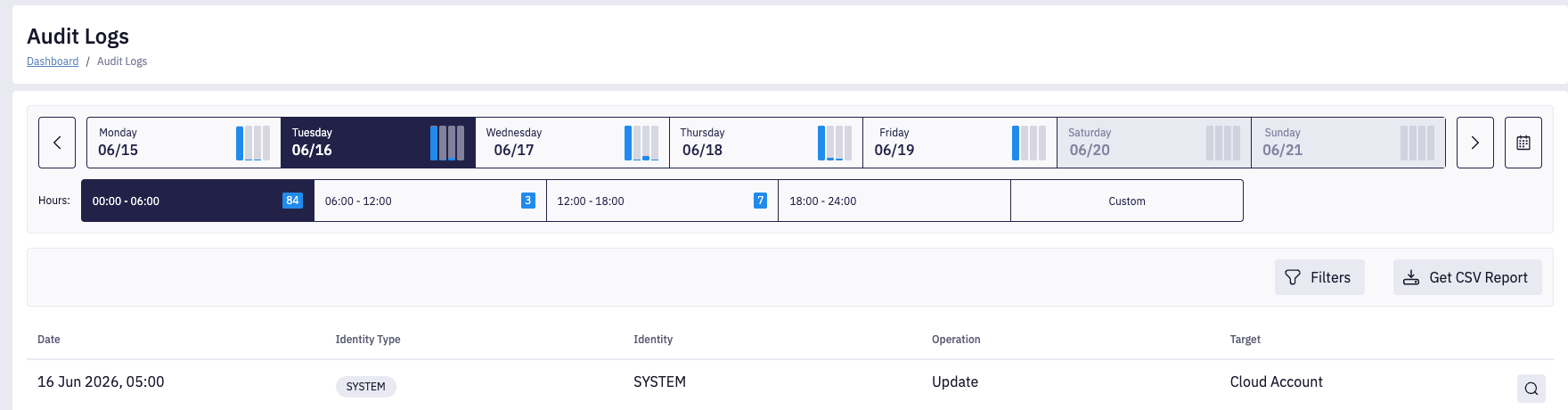
Each audit log entry includes:
- Timestamp
- Identity type
- Identity
- Operation
- Target
Identity types describe who or what initiated the action:
- System – Actions automatically performed by the platform.
- API Key – Actions triggered via programmatic access using an API key.
- User – Actions performed directly by a user.
Operations define what kind of action was performed:
- Create - A new entity was created.
- Update - An existing entity was modified.
- Delete - An entity was removed.
- Execute - An action or plan was run.
Targets specify which entity the operation was performed on:
- Resource
- Resource Group
- Plan
- Cloud Account
- Notification Group
- User
- API Key
- Role
2. Audit Log Details
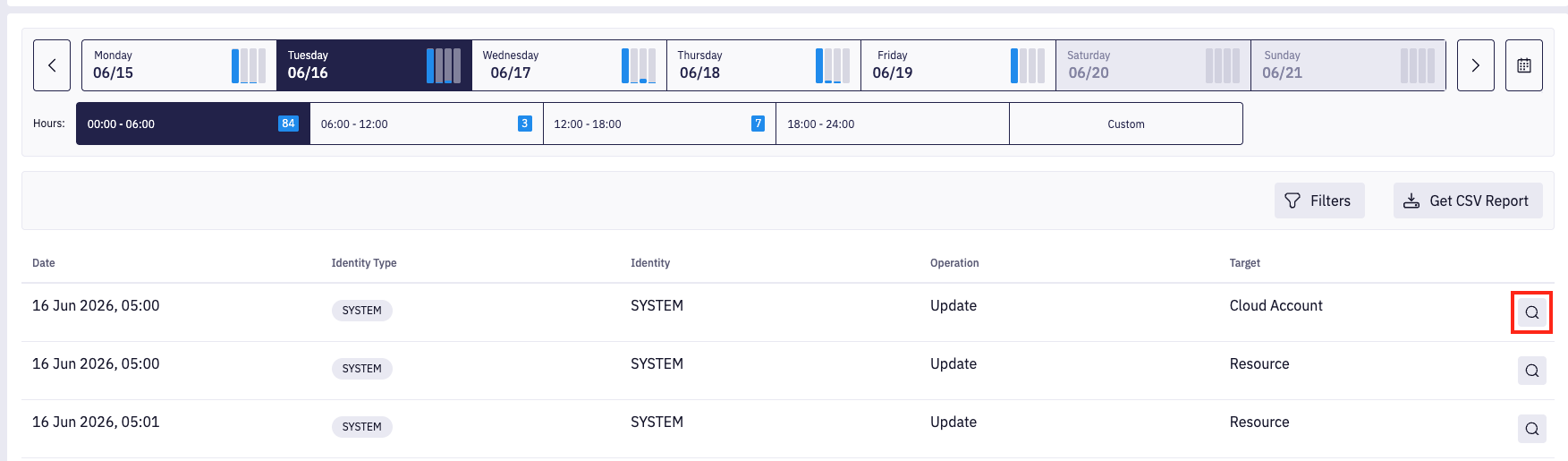
The Audit Log Details Sidebar provides detailed context for a selected log entry. The sidebar can be accessed by clicking the magnifier icon located on each audit log row.
It contains two sections: Tags and Data.
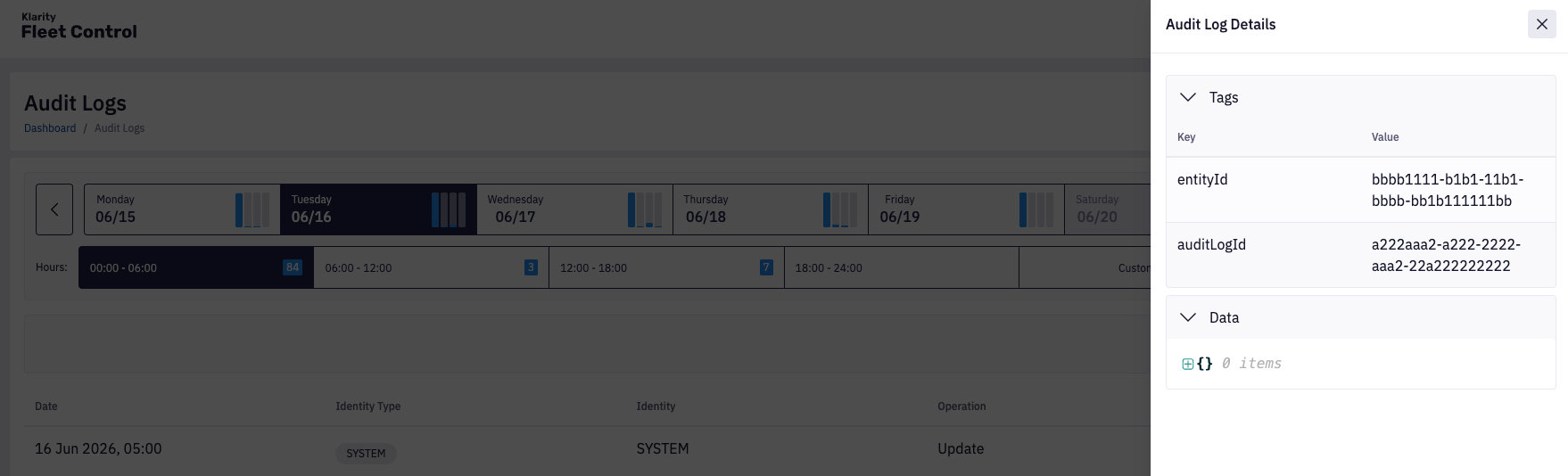
Tags:
- Provide additional metadata associated with the log entry.
- One of the key tags is
entityId, which identifies the related entity. - You can use the
entityIdto search for the corresponding entity in its respective view.
Data:
- This section displays any extra information attached to the log entry.
- The information is shown in JSON format, allowing you to review structured data related to the action.
This sidebar helps you analyze log entries more efficiently by exposing relevant identifiers and supplemental details.
3. Audit Logs Filters
The Audit Logs Filters Sidebar allows you to narrow down the displayed log entries based on specific criteria. This helps you quickly find relevant activity within large volumes of logs. You can filter audit logs by pressing the Filters button.
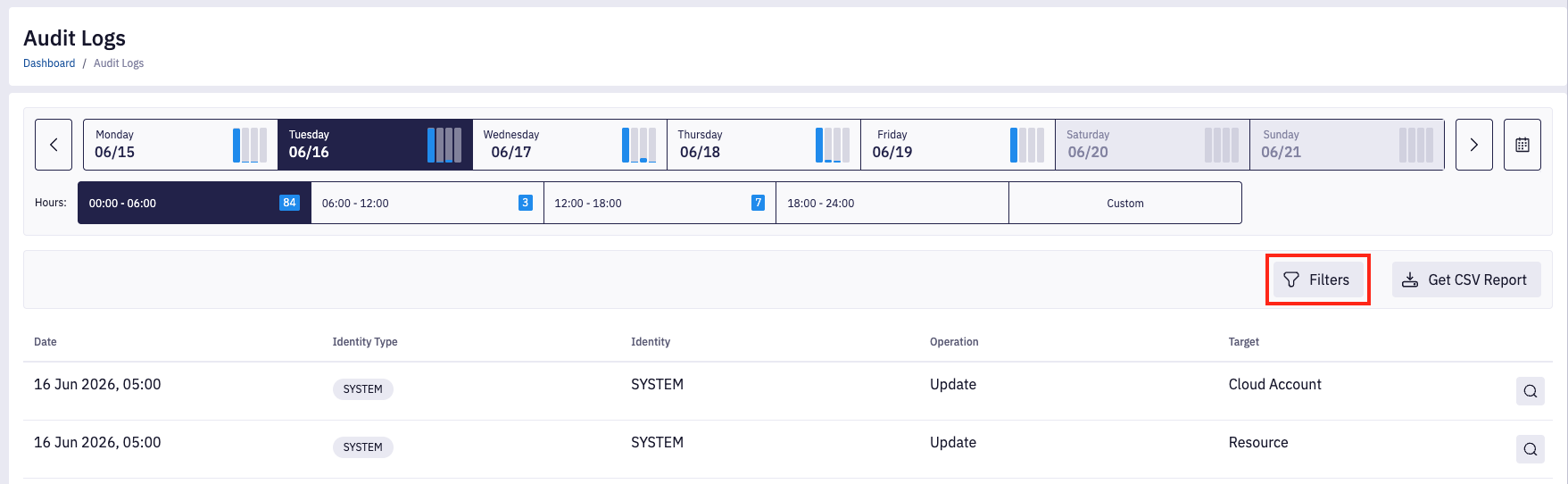
Four types of filters are available:
- Target – Filters logs by the entity type on which the operation was performed.
- Operation – Filters logs by the kind of action executed.
- Identity Type – Filters logs by whether the action was performed by a System, API Key, or User.
- Identity – Filters logs by a specific user, API key, or system actor.
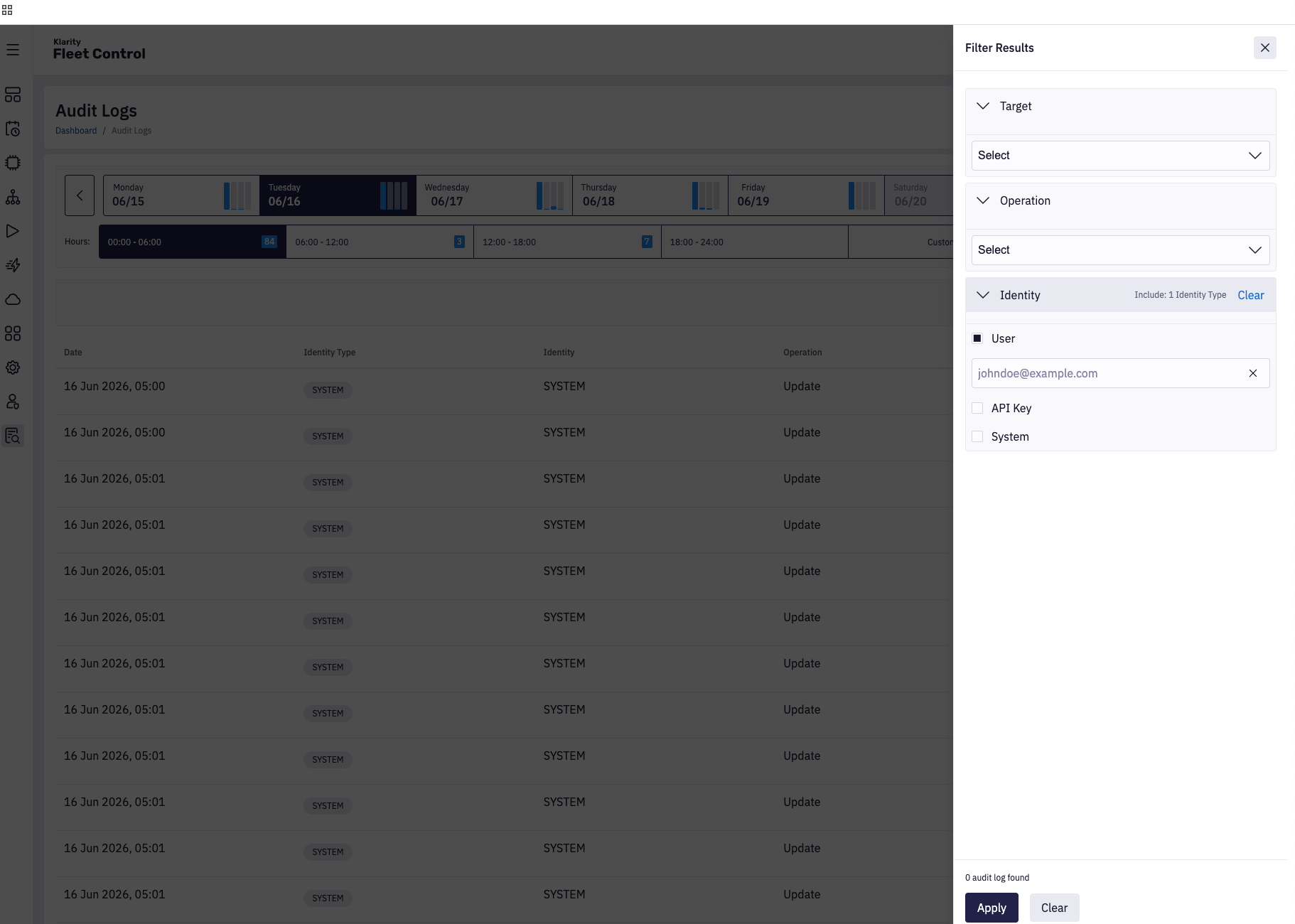
The Identity Type and Identity filters work together. To search for logs created by a specific identity, you
must first select the appropriate Identity Type. For example, to find logs created by john.doe@example.com,
you must first choose the User identity type before selecting the identity itself.
These filters can be combined to refine the log list and help you focus on exactly the subset of actions you need to review.
4. Download Audit Logs
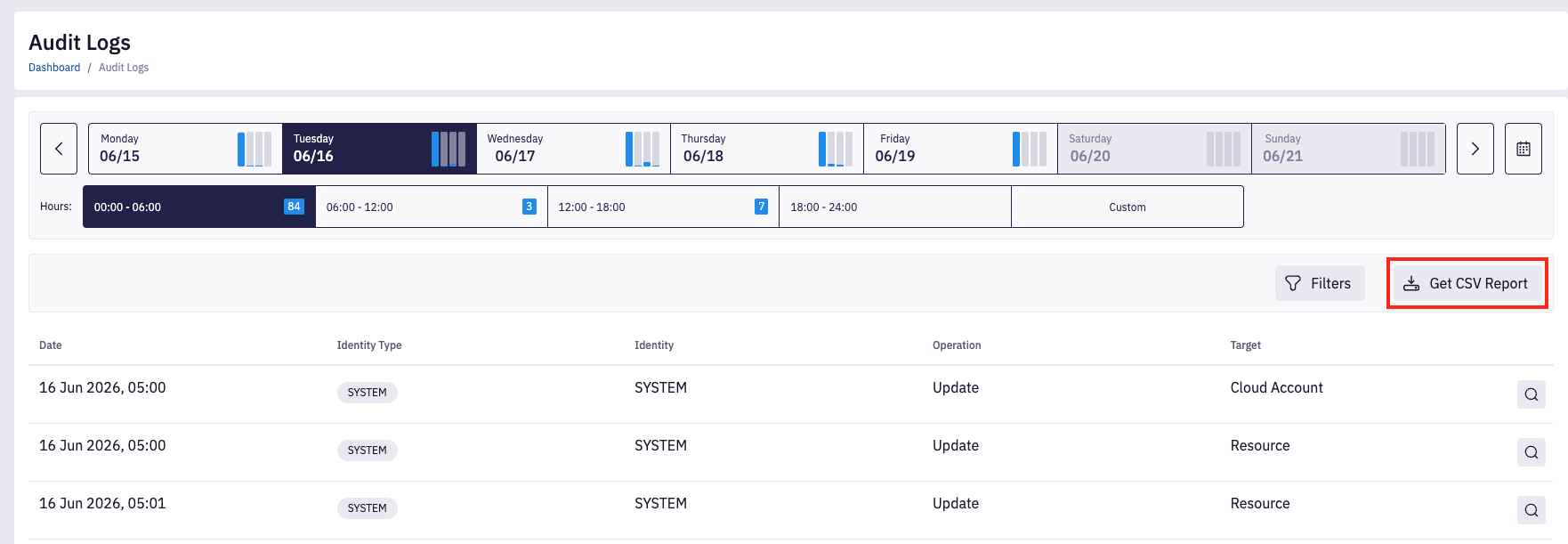
You can download audit logs in CSV format by clicking the Get CSV Report button. The generated CSV file contains the same data displayed in the audit logs table, allowing you to export, archive, or process the logs outside the system.