Events
An event includes one or more actions, like plans, representing a single execution. They provide information about the status of plan and resource-based actions, along with their statuses and output logs.
To get to the event page, go to the left menu and click Events.

1. List of events
By default, Events are sorted by Event Start Time, but you can also sort them by Event End Time, Event Name, and Event Status.

2. Event view
You can view your events by week, month, year, or you can set a custom date range.

3. Event status
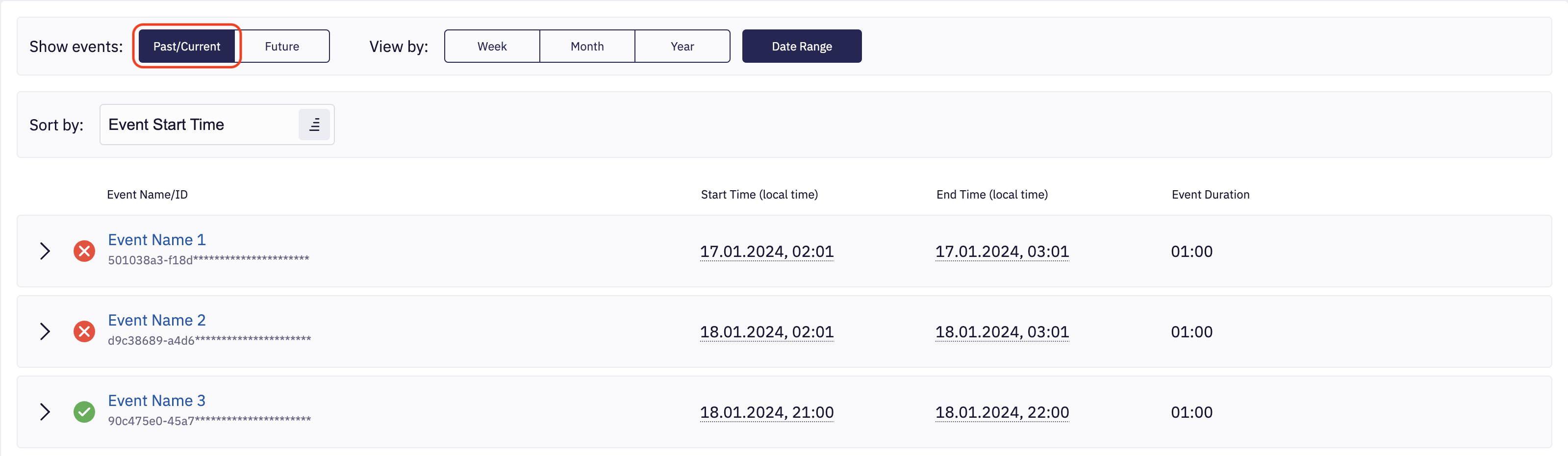
You can view your events by clicking either the Past/Current or Future buttons.
Past/current shows events that have finished or that are in progress; it has the following five statuses:
- Successful: All actions in the event were successful.
- Failed: All actions in the event failed.
- Waiting for approval: The event has unapproved actions.
- In progress: The event is currently in progress.
- Partially successful: Some of the actions in the event failed.
Please note that the successful execution of the patching job indicates that no pending patches were reported by the Operating System on the machine at the conclusion of the patching process.
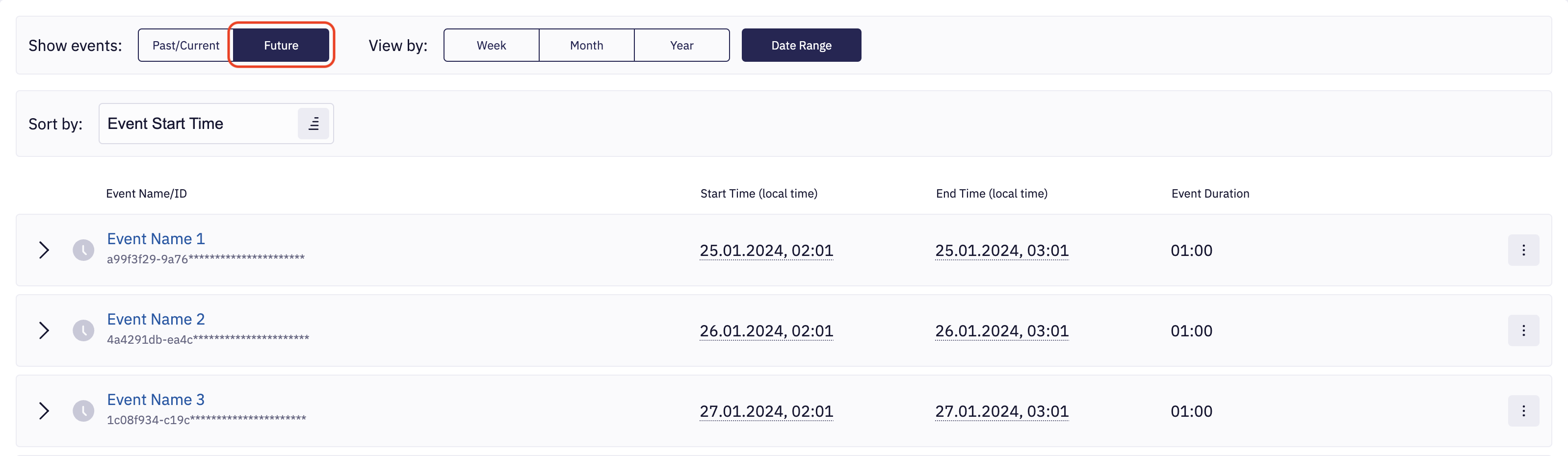
Future shows events that will start; it has the following two statuses:
- Upcoming: The event that will be executed in the future.
- Revoked: The event that has been revoked by a user. Refer to the Revoke Event section below for detailed overview of revoke feature.
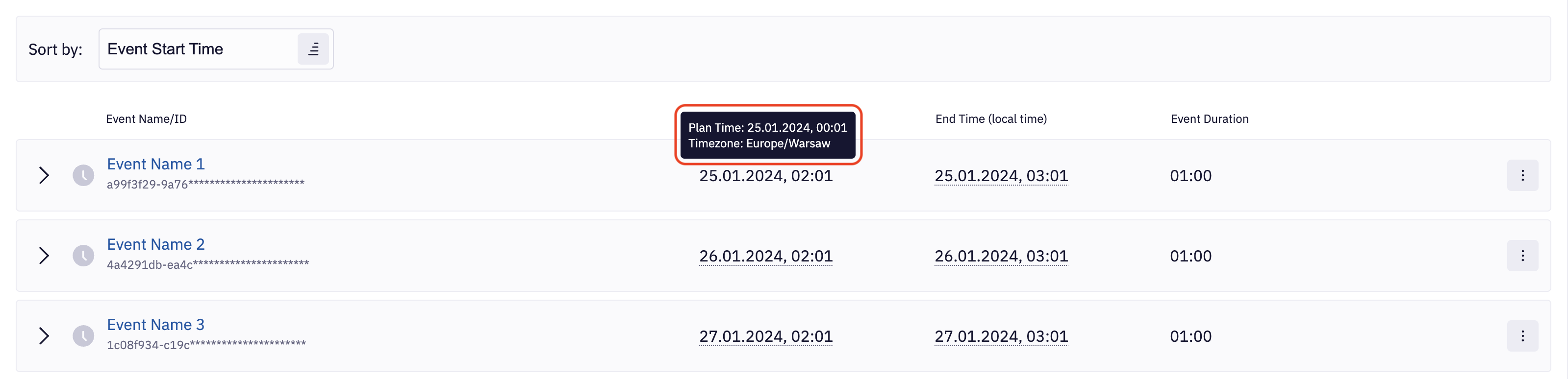
When you hover over the Start Time column, you can monitor the execution time and plan time in the corresponding timezone. The End Time column shows the same details but for when the event is finished. The last column displays the duration of the event.
4. Revoke Event
When you click the "Revoke Event" button, the event will be revoked, which means it won't be executed. Revoking an event does not impact the plan, only this particular event. Other events are unaffected and will be run as scheduled.
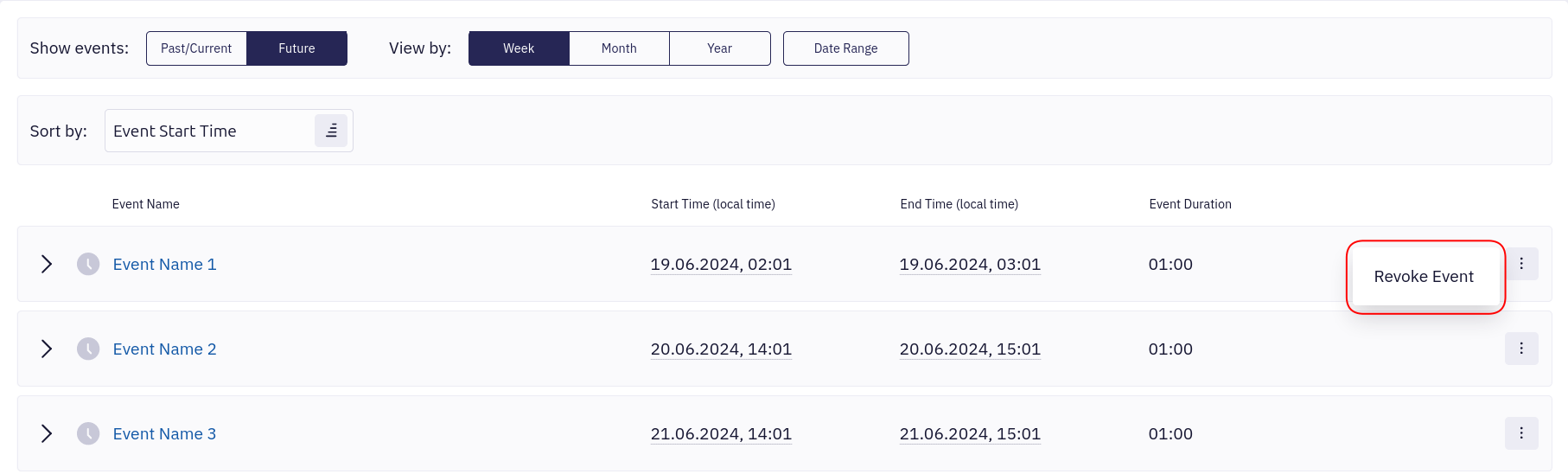
If you wish to stop all future events from running, use the Deactivate Plan functionality instead. This will remove all plan's scheduled events.
"Revoke Event" action cannot be undone. If you change your mind and wish to run the revoked event, you can deactivate and activate the plan again to re-create all events. Please note that this will remove the revoke status on all events.
When you modify plan's cron expression or timezone, the result is a completely different set of future events, so no revoke status persists. If you want to keep any of the events revoked, you must revoke them again.
5. Action Status
When the arrow icon is clicked, you will see a list of all event actions along with the number of resources and their statuses.
- Successful: The action was successful.
- Failed: The action failed.
- Unapproved: The action is unapproved and requires approval to run.
- In progress: The action is currently in progress.
- Partially successful: Some of the resources in the action failed.
- Timeout: The action or all resources in the action did not finish in the action's allotted time window.
- Approval timed out: The action was not approved in its allotted time window.

To learn more about a particular event, you can visit the Event details page.
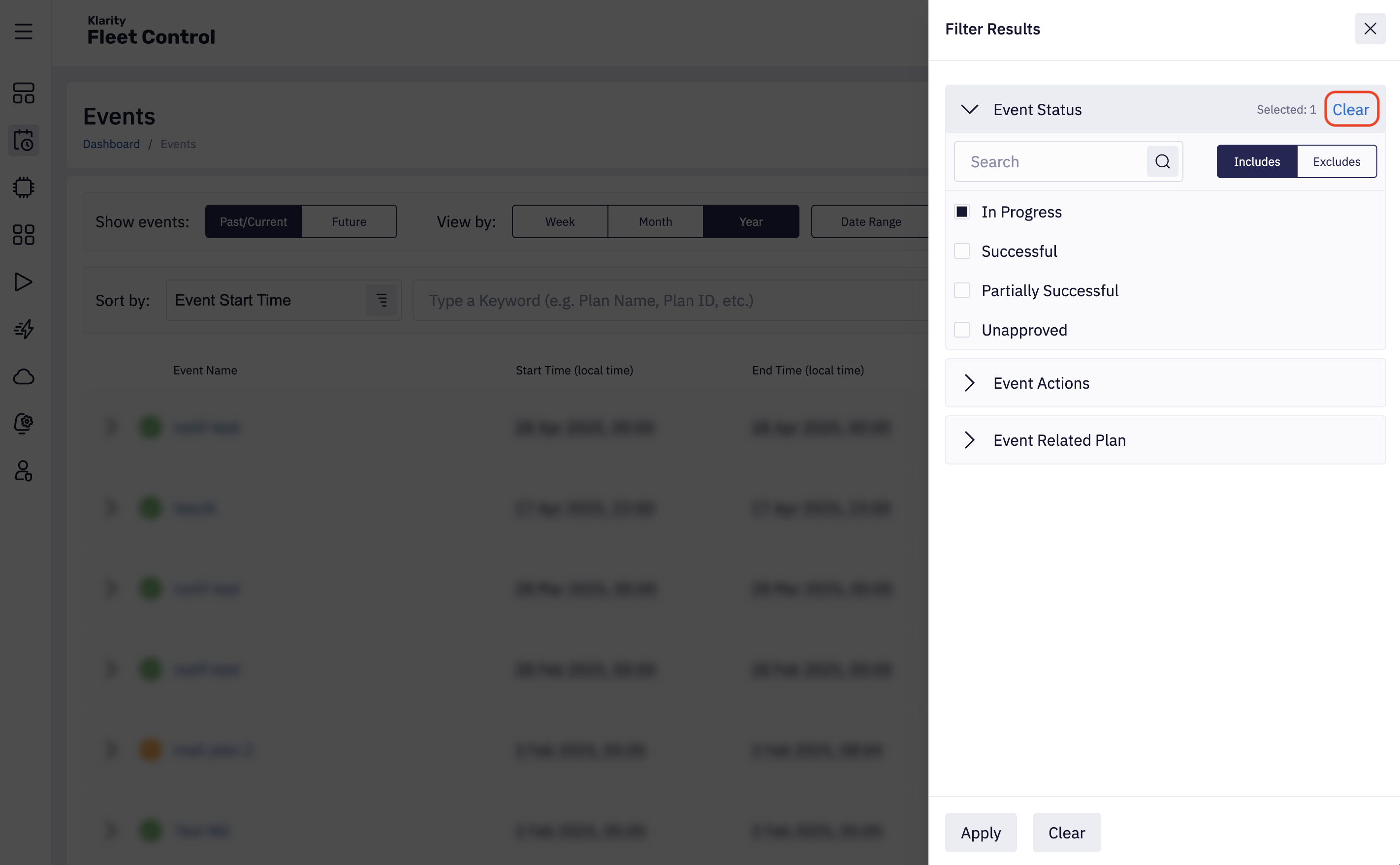
6. Filter events
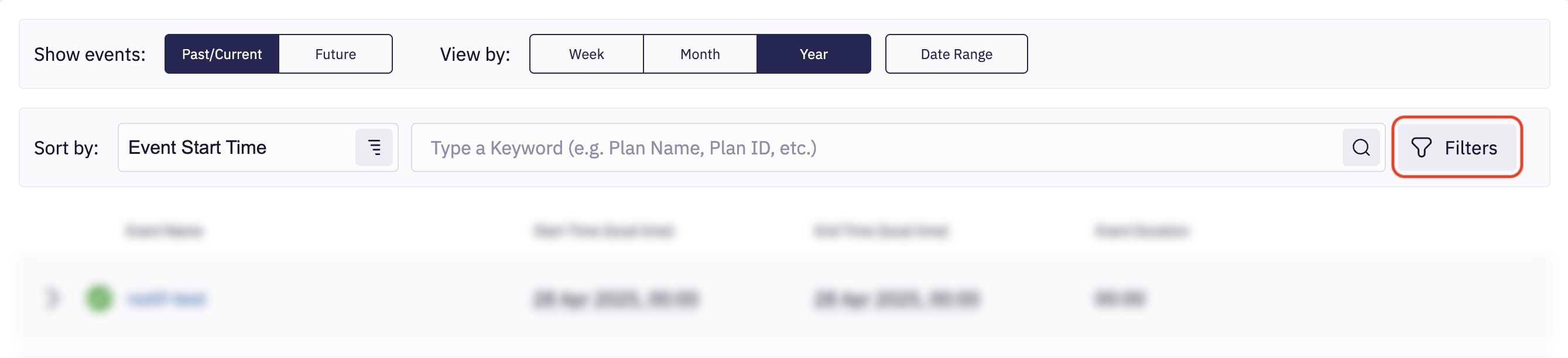
You can filter events by pressing Filters button.
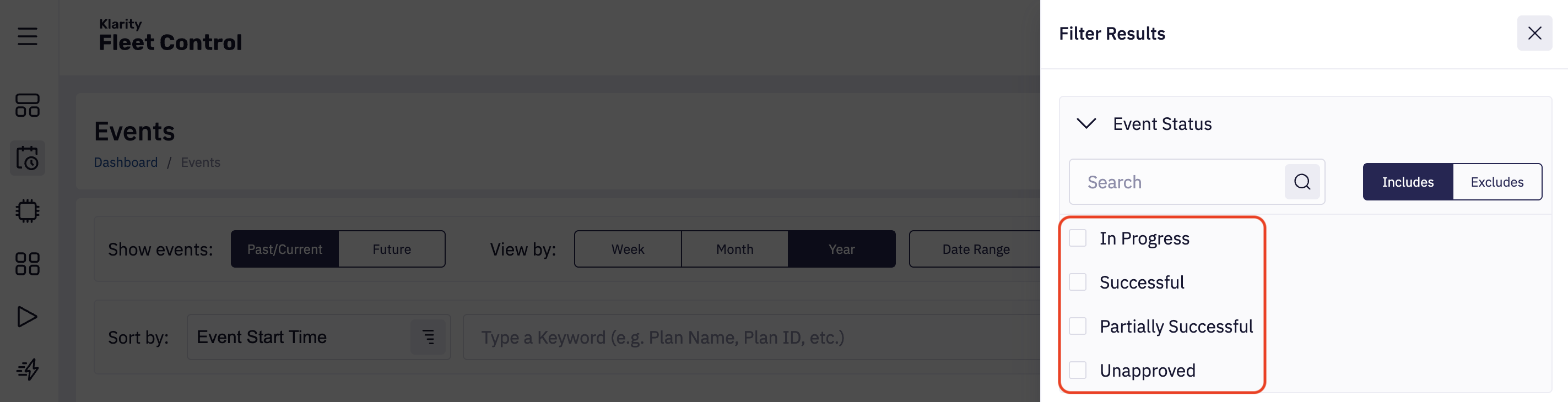
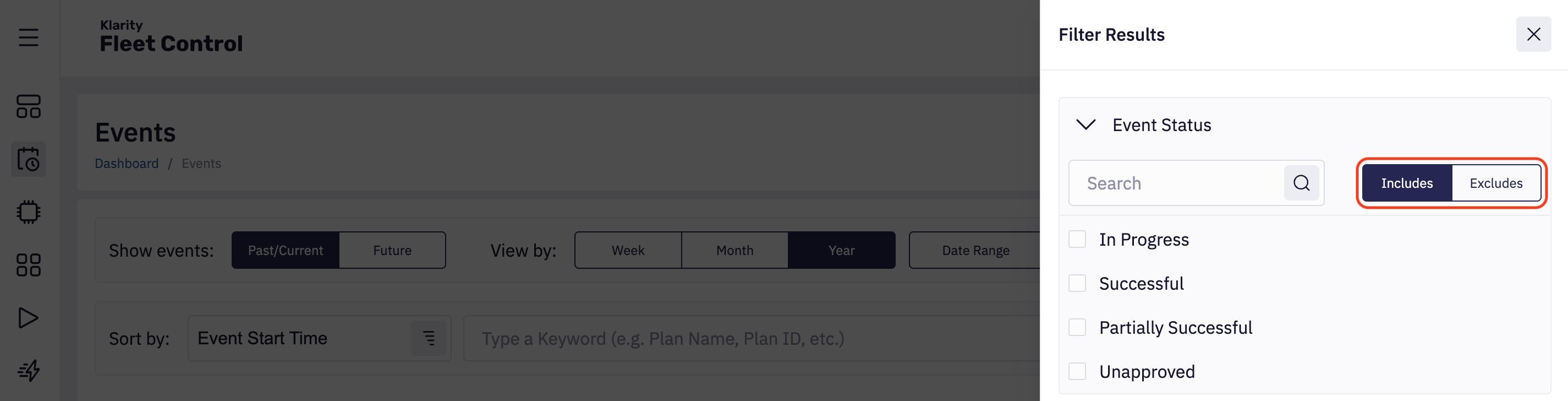
When you select to show Past/Current events, filter allows you to select Past/Current statuses.
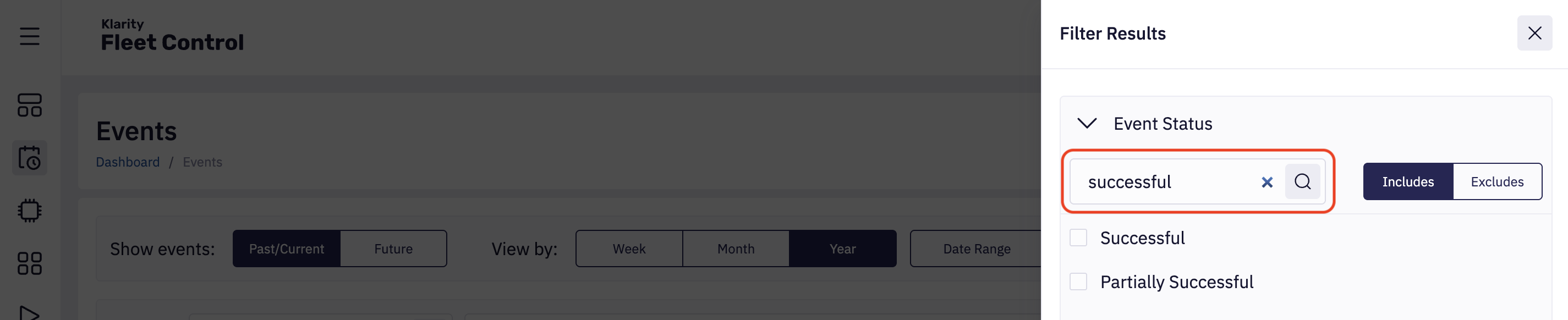
You can search for an event status by typing something into search bar.
Filters can operate in two modes: Include or Exclude. By default, filters operate in include mode. It means that in include mode, only events with selected statuses are shown. On the other hand, when exclude mode is selected, events with all statuses except for those selected are shown.
When you select to show Future events, filter allows you to select Future statuses.
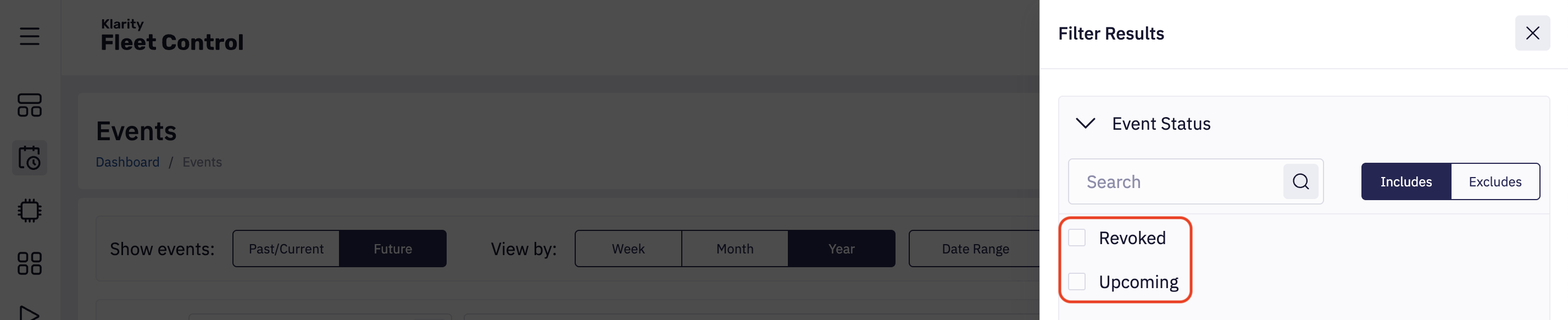
When switching between Past/Current and Future statuses, all previously selected filters are cleared.
When finished selecting filters, press Apply to apply filters.
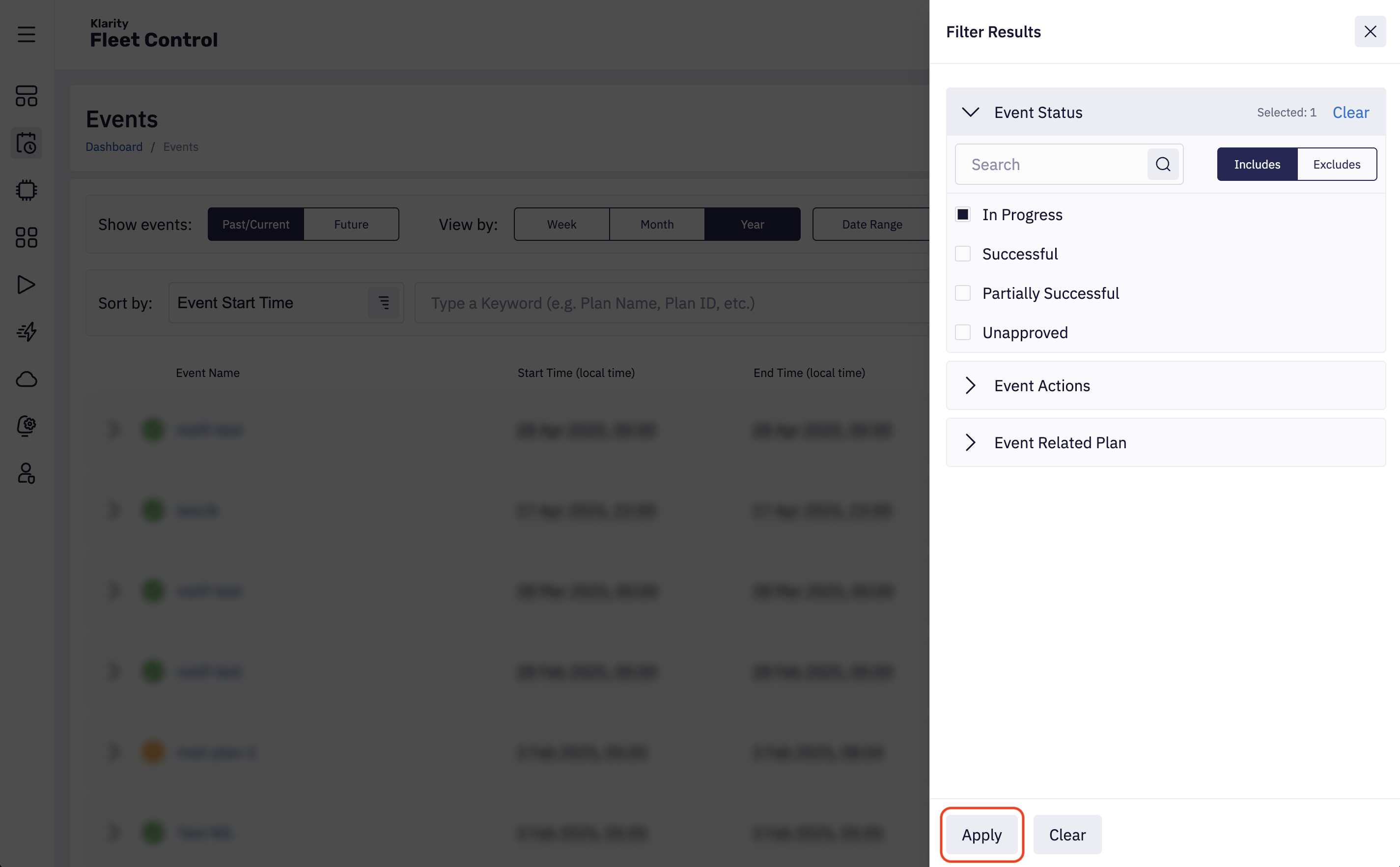
To clear selection, you have three options:
- Deselect selections manually and press Apply.
- Press Clear next to selections count and press Apply.
- Press Clear next to Apply.