Report View
The Report View under Resources helps you generate and manage CSV exports of resource data. It is useful when you need to audit current inventory, share data with other teams, or review a filtered subset of resources outside Fleet Control.
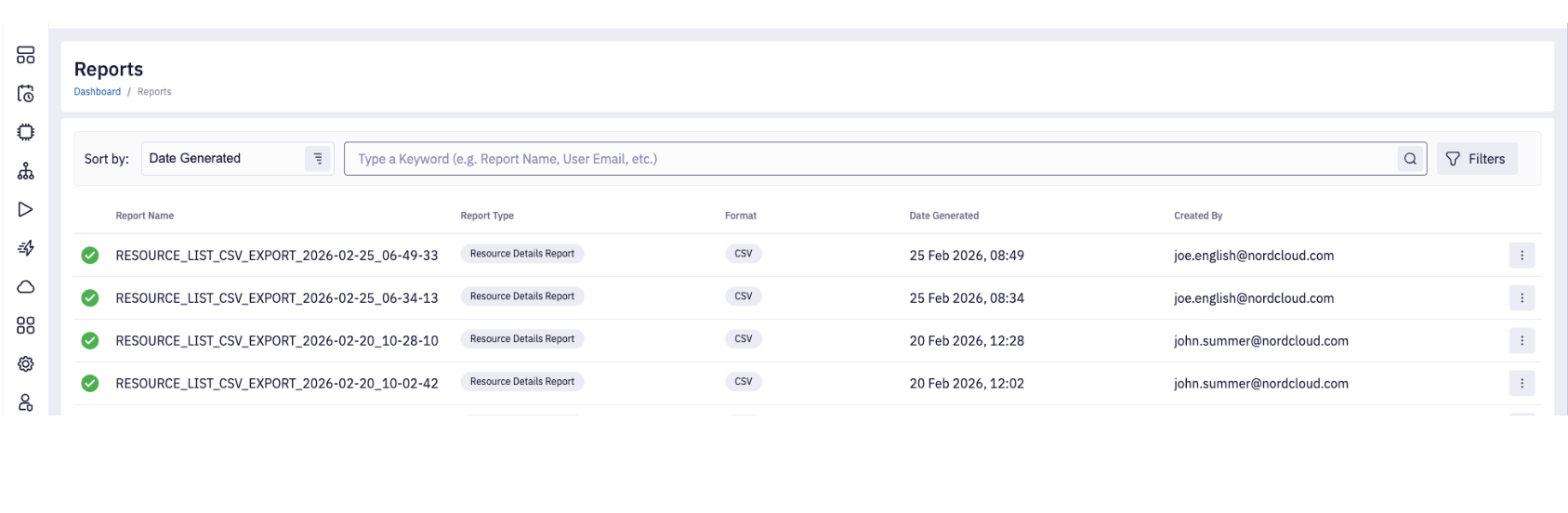
How the resource report works
Resource report generation is asynchronous:
- You request a report from the Resources list.
- Fleet Control creates a report job in the background.
- You monitor progress in Resources → Reports.
- When generation finishes, you download the CSV file.
The report always reflects the scope from which it was requested (single resource, selected resources, or full filtered list).
Report generation can start from multiple places:
- Resources, using
Get Resource Details Report (CSV)from the actions menu - Compliance Report modal, using the report export action
Use this page to monitor report status and manage generated files regardless of where the report was requested.
Track report generation
To monitor report jobs, open Resources → Reports.
In this view you can:
- Sort reports by Date Generated or Created By
- Search reports
- Filter reports by date range, status, type, and creator
Report statuses:
| Status | Meaning | What to do |
|---|---|---|
| In Progress | Report is still being prepared. | Wait until it completes. |
| Completed | Report is ready. | Download the CSV. |
| Failed | Report could not be generated. | Retry from the same view and validate selected scope. |
Download or delete a report
In Resources → Reports, open the row actions menu:
- Download Report: Available for completed reports.
- Delete Report: Removes the report entry from the list.
Typical usage flow
- Open Resources or a Compliance Report modal.
- Apply filters (for example by cloud account, OS, region, tags, or update status).
- Generate the report from the current view.
- Open Resources → Reports and wait for Completed status.
- Download and review the CSV.