Resource Update Status
The Resource Update Status is a derived, high-level summary of a machine’s update compliance.
It answers a single question:
Do I still have updates to apply or complete on this resource?
Instead of manually finding the latest relevant Event Action, opening its Report View, and interpreting its output, Fleet Control exposes a single status value directly in the Resources list and through the GraphQL API.
Source Event Actions Considered
For given resource Fleet Control looks back and seeks its latest Event Action that:
- Is one of a type:
PATCH,SCAN,INSTALL_WINDOWS_UPDATES,SCAN_WINDOWS_UPDATES - Is not in the
PENDINGstate
If no such action exists, the status becomes No Updates Data. For others, the status is computed based on the action’s final state and its report.
Status Definitions
| Update Status | Meaning | Typical Next Step |
|---|---|---|
| Action In Progress | A qualifying action is currently executing for this resource. | Wait until completion; status will update automatically. |
| No Pending Updates | Most recent qualifying action completed successfully and no outstanding updates or reboots remain. | None - resource is compliant. |
| Pending Updates (N) | Outstanding updates, failed installs, or pending reboot items were detected. | Schedule or rerun patching, investigate failures, or allow reboot. |
| Action Failed | Action terminated with a | Inspect logs; fix configuration or script issues; rerun. |
| No Updates Data | No qualifying action yet, or execution ended without usable output (timeout, not in window, logs inaccessible or being processed). | Run a |
No Updates Data status can appear briefly after an event action has just finished if logs are still being processed. Recheck after a short time. Only persistent absence usually indicates an execution or access issue. See Fleet Control can't save action output log for resource for detailed debugging steps.
UI Interaction
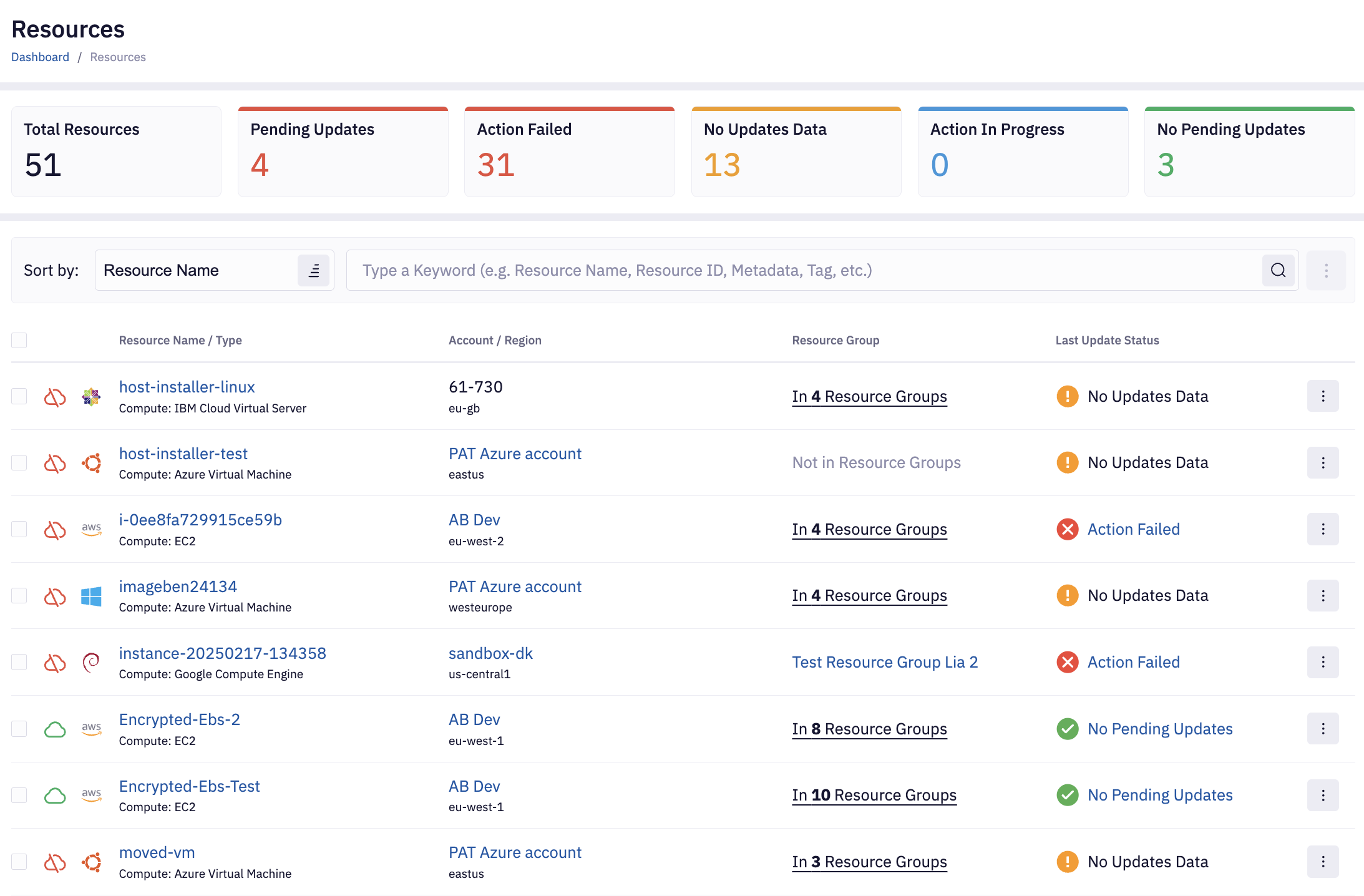
In the Resources list the status may appear as plain text or a clickable link in the Last Update Status column:
- Plain text: No qualifying historical action exists (
No Updates Data). - Link: Navigates directly to the Event Details view, auto-selects the underlying Event Action, opens the Report View, and scrolls to the resource’s log output. From there you can inspect for more details.
Above the list you will also see counters showing how many resources are currently in each Update Status.
Clicking a counter applies a filter so that the list displays only resources with that specific status.
GraphQL API
You can fetch statuses for one or more resources:
{
  updateStatusForResources(resourceIds: ["c615c205-15f7-491a-a24c-2c9d9cd6a712"]) {
    updateStatus          # e.g. "PENDING_UPDATES" | "NO_PENDING_UPDATES" | ...
    pendingUpdateCount    # integer, applicable only for "PENDING_UPDATES"
    basedOn {             # qualifying event action execution
      eventId
      eventActionId
      eventActionResourceStateId
    }
  }
}
If basedOn is null the system could not find a qualifying action and the status will be No Updates Data.
Troubleshooting
| Symptom | Possible Cause | Remedy |
|---|---|---|
| Action Failed after patching | Script error; SSM document failure; misconfiguration. | Review action logs; check Troubleshooting; rerun. |
| Pending Updates (N) never reaches zero | Reboots disallowed; failed updates recurring. | Enable RebootAllowed parameter; inspect failed package list;
rerun |
| Frequent No Updates Data | No scans scheduled; timeouts; action order prevents evaluation. | Add periodic SCAN actions; increase time window; avoid overlapping restrictive schedules. |
| Persistent No Updates Data after successful action | Action logs failed to save (e.g., S3 permission issues). | See Fleet Control can't save action output log for resource. |
Best Practices
- Schedule periodic
SCANactions independently to maintain visibility between maintenance windows. - Allow reboots where feasible. Pending reboot updates keep a resource non‑compliant.
- Use the status filtering as a quick triage tool, and drill into the linked Event reports only when needed.